How to Setup IPTV on Firestick (Step-by-Step 2026)
If you live in Brampton, there’s a good chance your TV setup looks like this:
- You’re tired of paying full cable prices
- You want sports, live TV, and international channels in one place
- And you don’t want to deal with 5 different streaming apps every month
That’s why so many people in Brampton are moving toward IPTV — and the Firestick is one of the best (and easiest) devices for it.
But if you’re being honest, the first setup can feel confusing.
Some IPTV providers send you an M3U link. Others send Xtream Codes. Some just say “download this app” and leave you hanging. And then if buffering happens, people assume IPTV is “bad” when it’s usually just a setup issue.
So here’s the real, simple guide — step-by-step — to set up IPTV on Firestick in Brampton in 2026, including the exact fixes for the problems most GTA households run into.
Quick Answer (SGE-Friendly)
To set up IPTV on Firestick in Brampton:
- Update your Firestick
- Enable “Install Unknown Apps”
- Install Downloader
- Install an IPTV Player app
- Log in using Xtream Codes or M3U link
- Load channels + guide
- Adjust settings to reduce buffering
- Optimize Wi-Fi or use Ethernet for best stability
✅ Before You Start (What You Need)
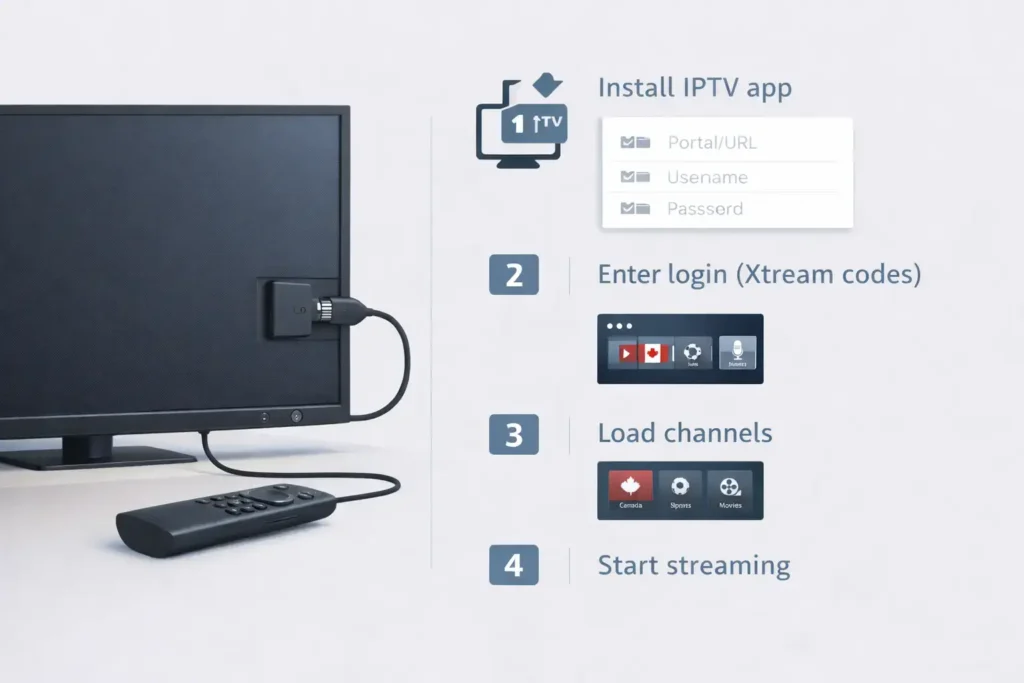
Before you begin, make sure you have:
✅ Firestick or Fire TV device (preferably Firestick 4K or newer)
✅ Stable Wi-Fi or Ethernet connection
✅ IPTV subscription login details (usually one of these):
Most common login formats:
- Xtream Codes (recommended)
- Portal URL / Server URL
- Username
- Password
- M3U playlist link
- Optional: EPG link (TV guide)
✅ 10–15 minutes for the first setup
✅ A bit of patience if it’s your first time (it gets easy after this)
Step-by-Step: IPTV Setup on Firestick (2026)
Step 1) Update Your Firestick (This Saves Headaches Later)
This is one of those steps people skip — and then IPTV apps crash, freeze, or don’t install properly.
Go to:
Settings → My Fire TV → About → Check for Updates
Install updates (if available), then restart the Firestick.
✅ Firestick updates improve performance and app compatibility.
Step 2) Enable Developer Options (Allow IPTV App Install)
Many IPTV players are installed through an APK file, which Firestick treats as “unknown” apps.
Go to:
Settings → My Fire TV → Developer Options
Turn ON:
✅ Install Unknown Apps
✅ (Optional) ADB Debugging
If you don’t see Developer Options:
Settings → My Fire TV → About → select Fire TV Stick name 7 times
This unlocks Developer Options again.
Step 3) Install Downloader App
Downloader is the easiest tool to install IPTV apps on Firestick.
- Go to Search
- Type: Downloader
- Install it (orange icon)
- Open it and allow permissions
That’s it. You’re ready for step 4.
Step 4) Choose an IPTV Player App (Best Ones in 2026)
Your IPTV service may recommend an app. If they don’t, these are the common choices:
✅ Best for Beginners:
IPTV Smarters-style apps
Easy menus, easy login, good for families.
✅ Best Overall Interface:
TiviMate
Feels like cable TV. Strong guide + favourites. Slightly more advanced.
✅ Other solid options:
XCIPTV / Flix IPTV / Smart IPTV (depending on device support)
If you’re new: go with a Smarters-style app first.
You can always switch later.
Step 5) Install IPTV App Using Downloader
Open Downloader.
Your provider will normally give you:
- A Downloader code
- An APK download link
- A short URL
Option A — Using a Downloader Code
- Enter the code in Downloader
- Press Go
- Install when prompted
Option B — Using a direct APK Link
- Paste the link in Downloader
- Download
- Install
✅ After installation: choose Delete to remove the APK file and save space.
Step 6) Log In (Xtream Codes vs M3U)
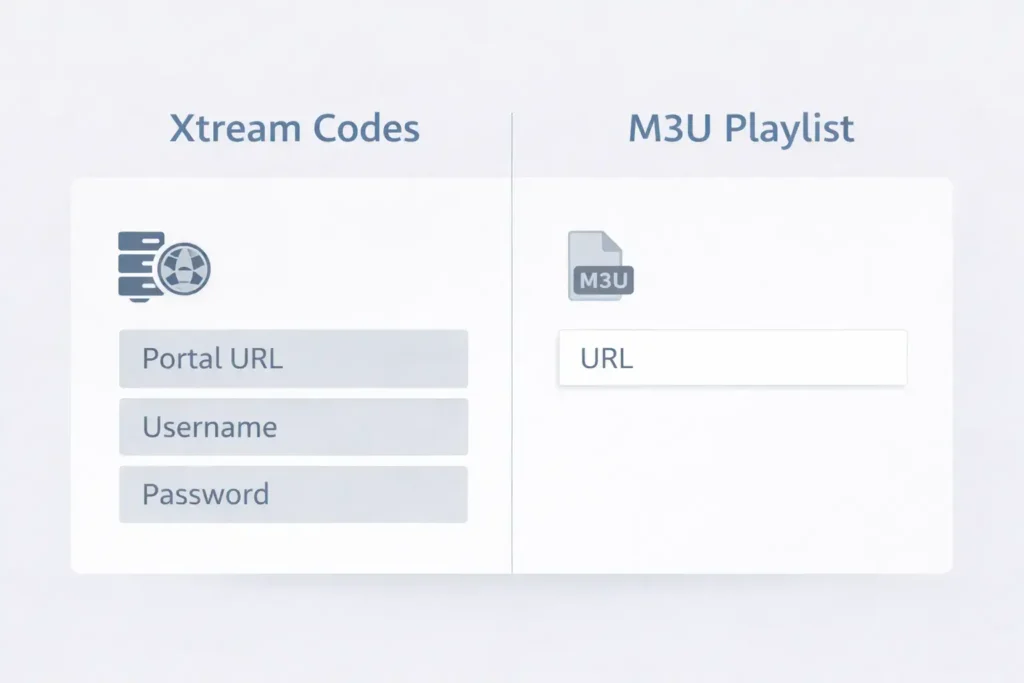
This is where most people get stuck — but it’s easy once you understand it.
✅ Xtream Codes (Best option for most users)
Choose: Login with Xtream Codes API
Enter:
- Portal URL
- Username
- Password
This method loads:
✅ channels
✅ categories
✅ guide (EPG)
✅ logo placeholders (if available)
✅ M3U Playlist
Choose: Load playlist URL
Paste:
- M3U URL
- optional EPG URL
M3U works, but Xtream Codes is usually smoother.
If your provider gave you Xtream Codes, use it.
Step 7) Let Channels Load (First Load Takes Time)
The first time your IPTV app loads, it’s pulling:
- Channel list
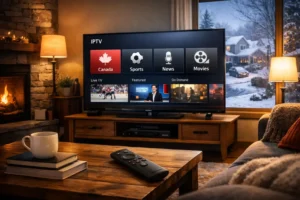
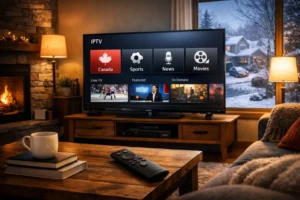
- Categories (Canada, Sports, News, Movies…)
- TV guide data (EPG)
This can take 30 seconds to 2 minutes.
If it looks stuck:
✅ close app and reopen
✅ double-check the portal URL
✅ restart Firestick
✅ ask provider if portal changed (it happens)
Step 8) Best Firestick Settings to Reduce Buffering
A lot of IPTV buffering isn’t the provider — it’s the player settings.
✅ Change decoder settings
In your IPTV app settings, enable:
✅ Hardware Decoder
This often reduces freezing and makes streams smoother.
✅ Reduce cache (buffer size)
If your player supports it:
- Start with small/medium buffer
- Increase slightly only if needed
IPTV Buffering in Brampton: Why It Happens (And Fixes That Work)
If you’re watching in Brampton, you might have:
- Basement TV setup
- Router upstairs
- Thick walls
- Multiple family devices on Wi-Fi
- Peak-hour internet congestion (especially evenings)
So buffering isn’t unusual — but it’s also fixable.
✅ Most Common Buffering Causes
- Weak Wi-Fi signal in the room where TV is
- Router needing restart
- Too many devices streaming at once
- IPTV server overload during sports events
- Older Firestick models or low storage
- ISP congestion
✅ Quick Fixes That Actually Work
✅ Restart Firestick (Settings → Restart)
✅ Restart router/modem
✅ Move Firestick closer to router (test once)
✅ Upgrade Wi-Fi (mesh is huge in Brampton homes)
✅ Use Ethernet (best fix)
✅ Reduce quality from 4K → HD
✅ Clear cache (Firestick settings)
Most Brampton users see the biggest improvement from Ethernet + stable provider.
Internet Speed Needed for IPTV in Brampton (2026)
People often ask: “How fast does my internet need to be?”
Here’s the honest answer:
✅ Recommended Speeds
- HD IPTV: 15–25 Mbps stable
- 4K IPTV: 35–50 Mbps stable
- 2–3 TVs streaming: 50–150 Mbps depending on usage
But speed alone isn’t the whole story.
A connection that hits 200 Mbps but drops in stability (jitter/packet loss) can still buffer.
Stability > speed.
Bonus: Make IPTV Easy for the Whole House
If you have family members using the TV, don’t make IPTV feel like a tech project.
Put IPTV app first on the home screen:
- Hold the Home button
- Go to Apps
- Highlight IPTV app
- Press ☰ menu button
- Choose Move to Front
Now it becomes “normal TV” for everyone.
Common IPTV Firestick Problems (Fast Fixes)
✅ IPTV App Keeps Crashing
- Settings → Applications → Manage Installed Apps
- Select IPTV app → Clear Cache
- Restart Firestick
- If still crashing: reinstall app
✅ No Sound / Audio Delay
- Change channel
- Restart stream
- Switch decoder settings
- Restart Firestick
✅ Black Screen
- Switch decoder (hardware/software)
- Try backup stream
- Test another channel
✅ Playlist Won’t Load
- Most common cause: wrong URL or spacing
- Copy/paste instead of typing
- Provider portal could be rotated
If you’re new to IPTV, one thing matters more than you think:
Even with the best guide, sometimes you’ll run into:
- portal issues
- app issues
- stream overload
- setup confusion
So if you’re choosing an IPTV service in Brampton, look for:
✅ clear Firestick setup help
✅ stable streams
✅ real support contact
✅ test/trial option if possible
That’s what makes IPTV enjoyable instead of frustrating.
FAQ — IPTV Setup on Firestick in Brampton (2026)
1) What’s the easiest IPTV app for Firestick?
Most beginners use IPTV Smarters-style apps. TiviMate is excellent but slightly more advanced.
2) Do I need a VPN for IPTV in Brampton?
Not necessarily. Some users prefer it for privacy or throttling, but VPN can also slow speed. Test both.
3) Why does IPTV buffer even with fast internet?
Usually weak Wi-Fi, high jitter, ISP congestion, or overloaded IPTV servers. Ethernet fixes most issues.
4) What’s better: Xtream Codes or M3U?
Xtream Codes is usually easier, loads guide better, and performs more smoothly.
5) Can I use IPTV on multiple TVs?
Yes, but you need a plan that supports multiple connections, and each TV needs a device.
6) Smart TV or Firestick?
Firestick is generally smoother and supports more IPTV apps. Smart TV apps depend on the TV model.
7) How do I update IPTV apps on Firestick?
If installed via APK, download the newest version through Downloader and reinstall.
8) What if IPTV stops working suddenly?
Restart Firestick + router, then verify your portal URL hasn’t changed. If needed, contact provider support.